QlipX, Your Snippets Instantly

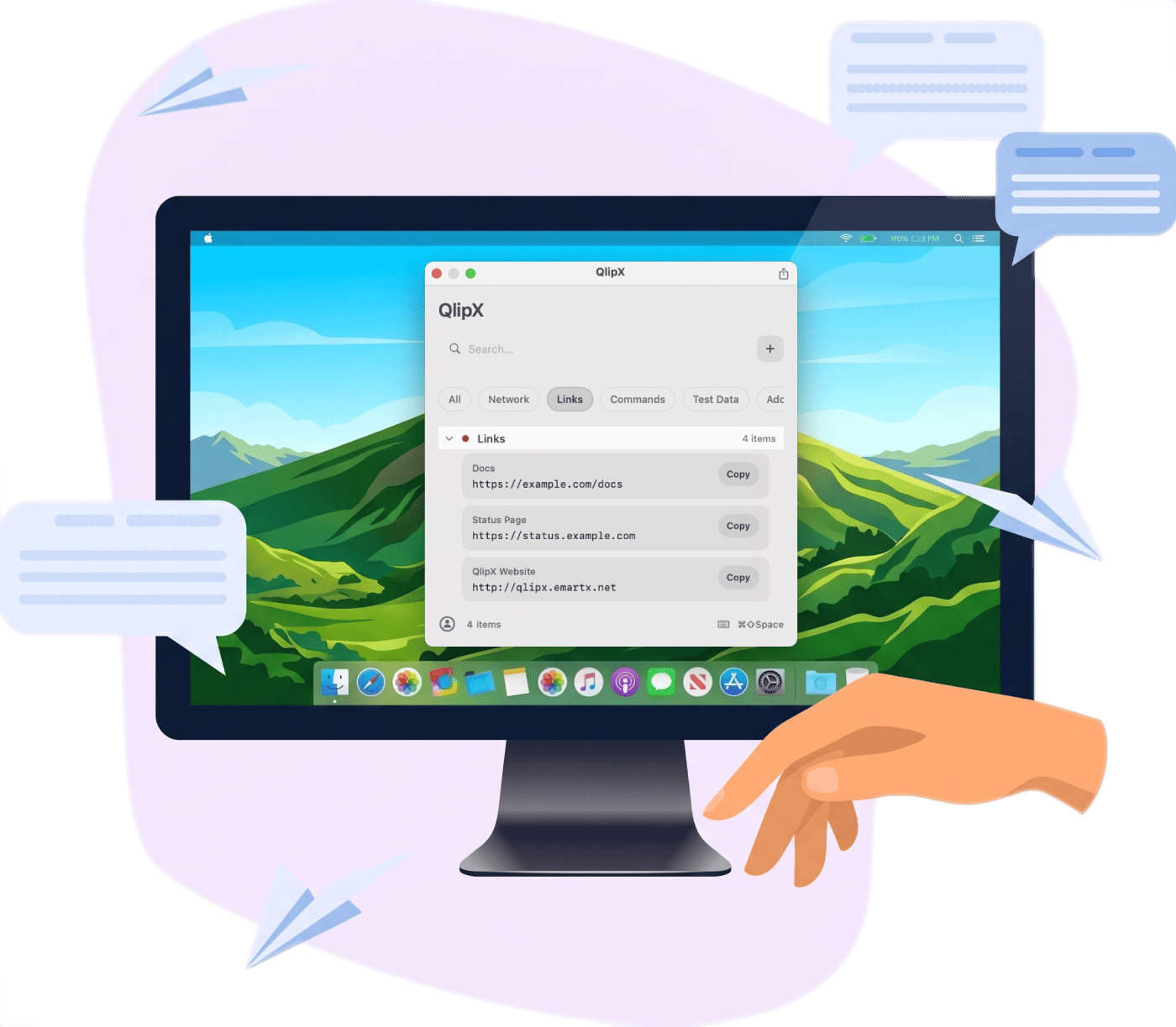
QlipX is a lightweight macOS menu bar app for saving links, commands, replies, notes, file paths, and other snippets you reuse every day. Open the floating panel instantly, search what you need, and copy it in one click.

  • Download the latest DMG
  • Move QlipX to Applications
  • Open it and allow macOS if prompted
  • Press Cmd + Shift + Space to open
Built for fast reuse, not clipboard history clutter

QlipX focuses on intentional snippet storage: the pieces of text you know you will need again, organized into categories and available from a floating panel above any app.

Quick copy

Save frequently used text and copy it to the clipboard directly from the panel when you need it.

Floating panel access

QlipX runs in the menu bar and opens as an always-on-top, available from the icon or the global shortcut.

Organized categories

Create named categories, collapse groups, search across labels and content, and reorder items when you want a cleaner list.

Private by default

Your data stays on your Mac in a readable JSON file. There is no analytics layer, no sync requirement, and no network dependency.

Native macOS utility with a simple architecture

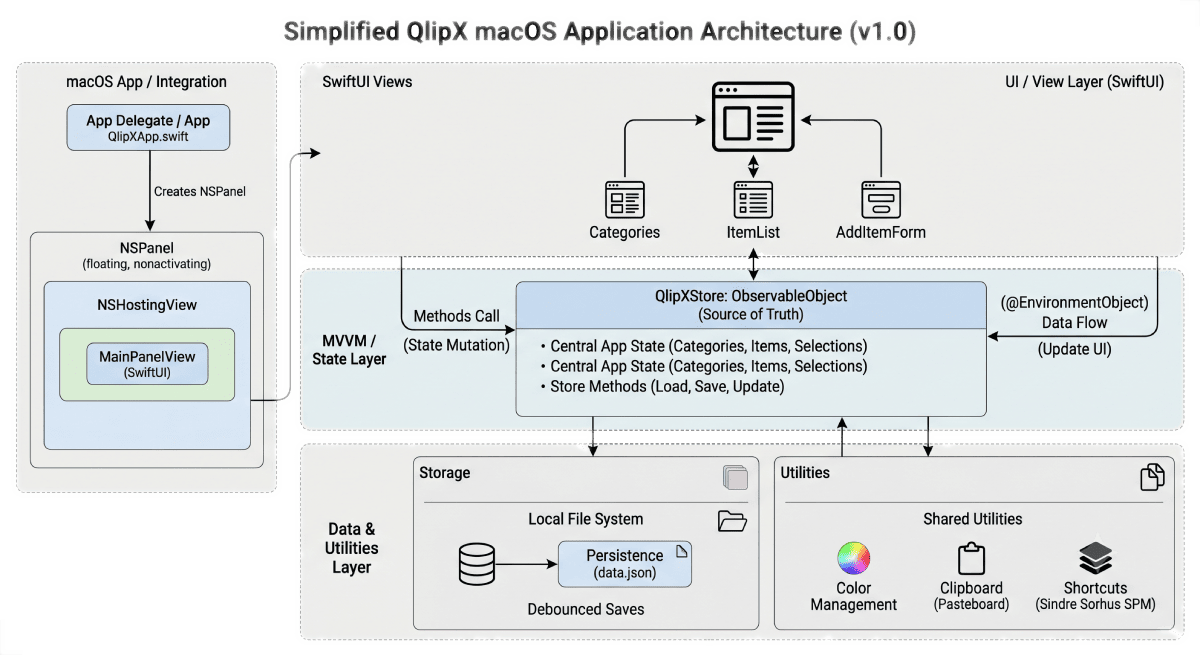
QlipX uses a single centralized store as the source of truth. Data flows from the local JSON file into the store and then into SwiftUI views, keeping the app fast, predictable, and easy to maintain.

SwiftUI + AppKit

SwiftUI for views, AppKit for menu bar and floating panel behavior.

Single Store MVVM

One shared QlipXStore handles state, persistence, and business rules.

Debounced persistence

Changes are written locally after short debounce windows to avoid noisy disk I/O.

Minimal dependency footprint

Only one external package is used for the system-wide keyboard shortcut flow.

Built for macOS 13+ with Swift 5.9+, distributed as a direct download, and designed as a menu bar app that stays out of the Dock and app switcher.

QlipX architecture diagram

Planned screen walkthrough for the landing page

Each panel below highlights a key part of the QlipX experience.

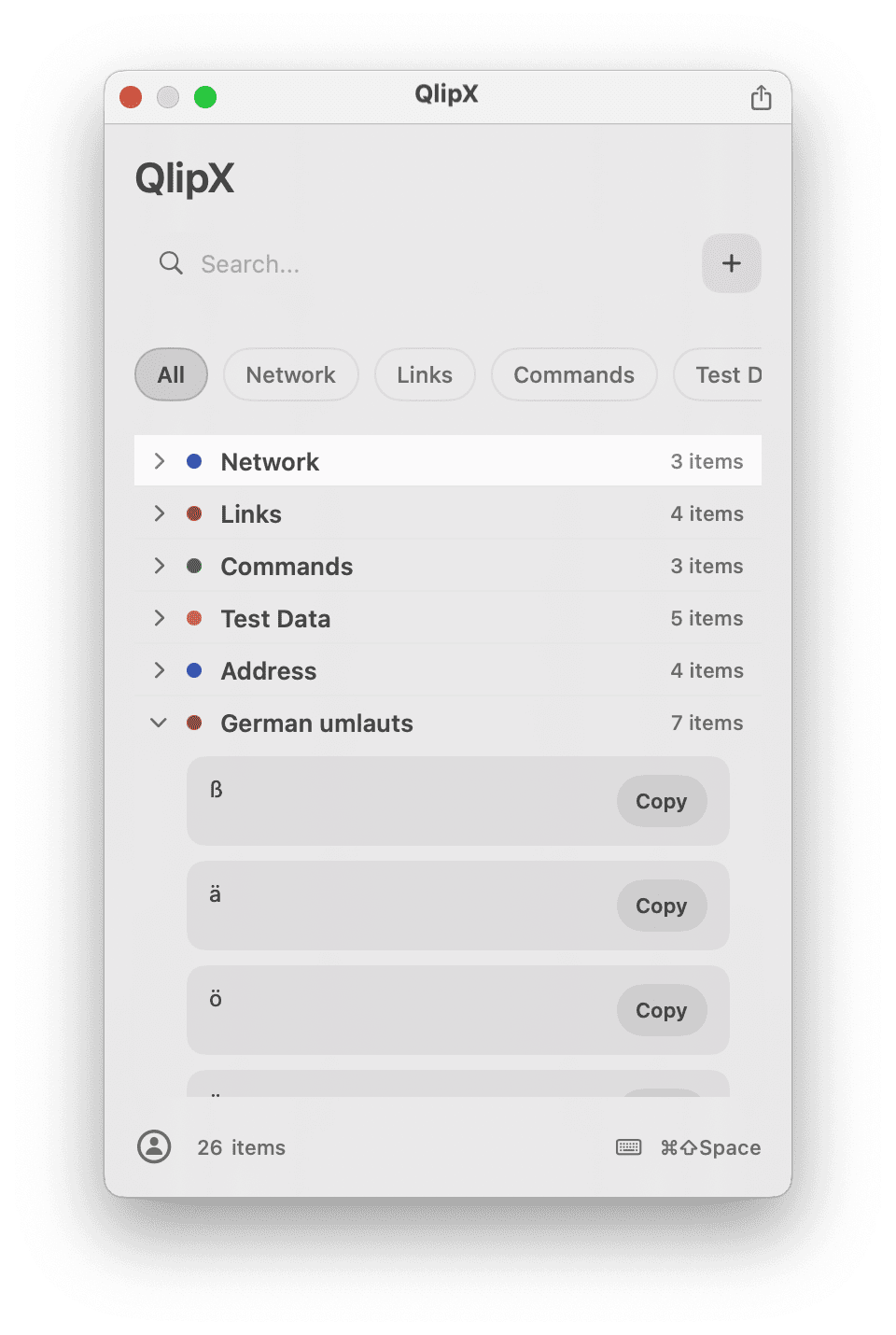
  • Main panel screenshot

    Show the default floating panel in its most recognizable everyday state, with category tabs clearly visible across the top or side, multiple snippet rows in view, and the search field ready for quick filtering. The screenshot should make it obvious that users can browse saved text at a glance, understand the structure immediately, and copy any snippet without opening a separate window or losing focus from their current task.

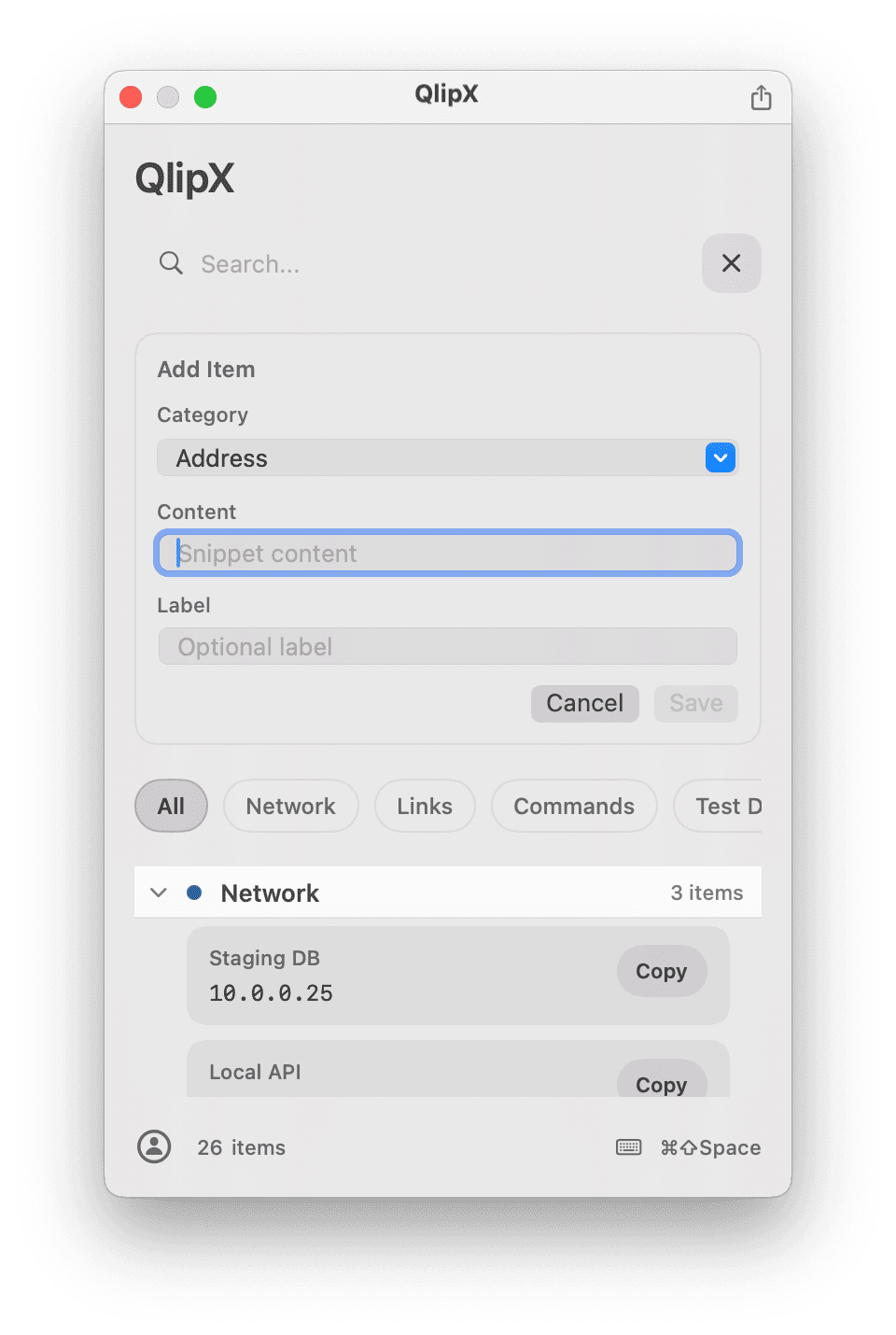
  • Add item form screenshot

    Capture the inline add-item form while it is fully expanded so the workflow feels simple and approachable. Include the category selector, the main content input, and the optional label field in a way that shows users exactly how new snippets are organized as they are created. The goal is to communicate that adding reusable text takes only a few seconds and does not interrupt the fast, lightweight feel of the app.

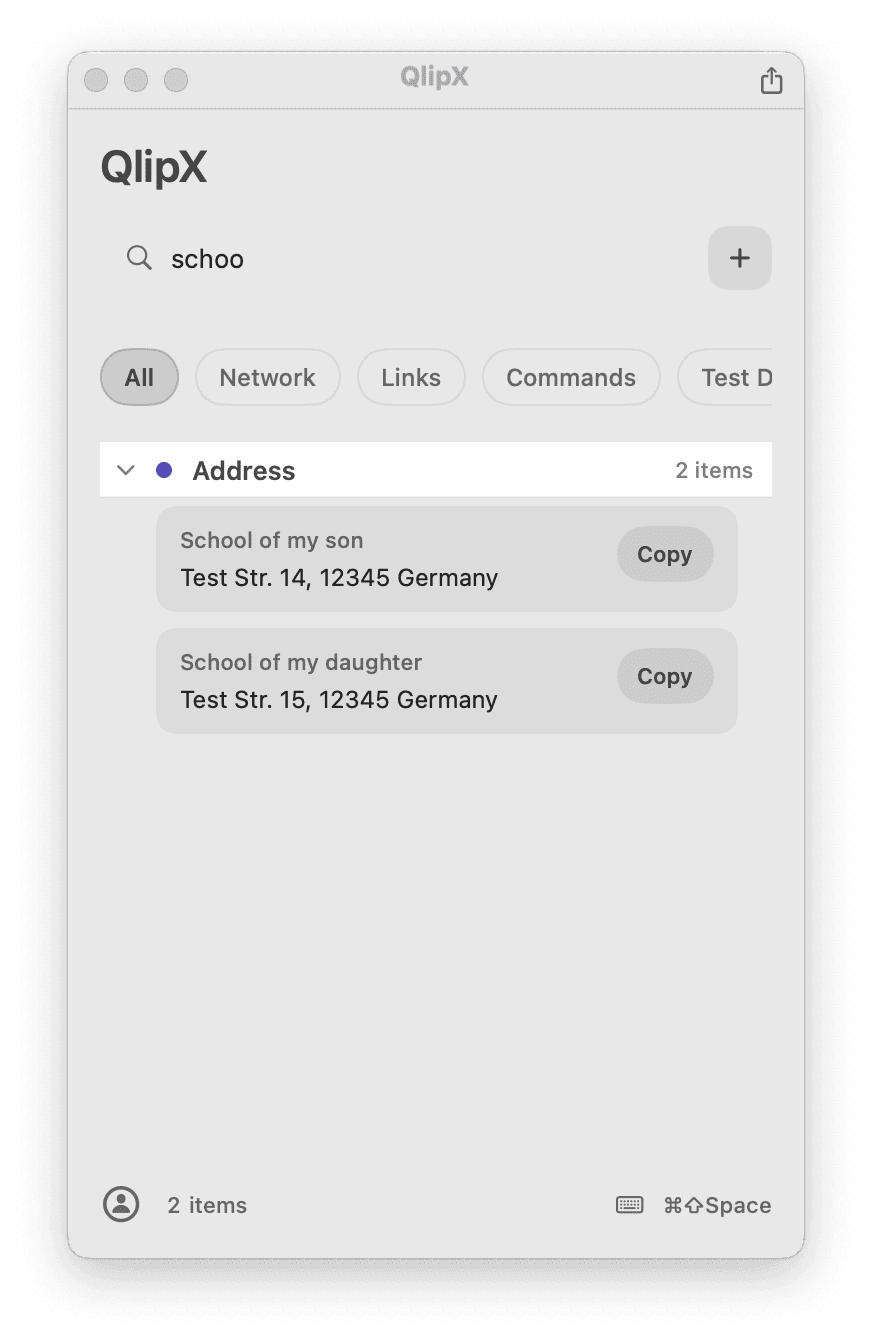
  • Search and filter screenshot

    Show the app actively filtering snippets as the user types, with the search field focused and matching results updating in real time. Include category tabs if possible so the screenshot demonstrates that users can narrow results both by keyword and by section. This image should emphasize speed, clarity, and the practical benefit of finding saved commands, links, notes, or replies instantly even when the list has grown large.

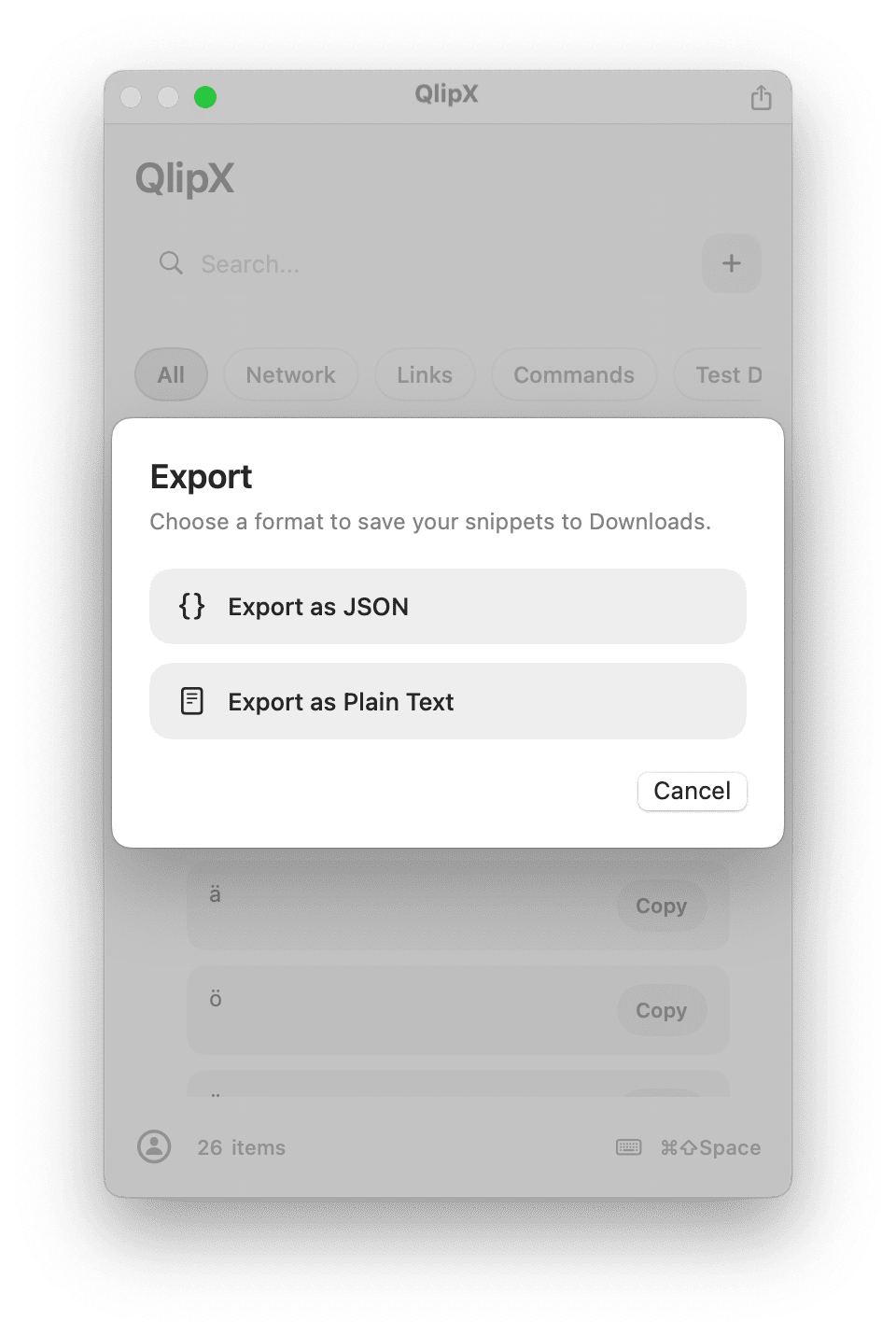
  • Export sheet screenshot

    Use a capture that clearly presents the export interface and makes both JSON and plain text options immediately understandable without explanation. The screenshot should help visitors see that their snippets are portable, easy to back up, and simple to move between workflows or machines. If possible, frame the export choices in a way that highlights control and transparency, reinforcing that users are not locked into a hidden or proprietary storage format.

See QlipX in motion

A quick preview of the app flow.

Demo
QlipX demo GIF